Official websiteShadowrocket Official Manual

Shadowrocket
User Guide

A rule-based proxy client for iPhone / iPad: add an existing subscription and set up rule-based routing. First verify the official App Store listing and the one-time purchase, then configure the connection.

Developer: Shadow Launch Technology Limited
App ID 932747118·One-time purchase

  • Shadowsocks
  • VLESS
  • WireGuard
  • On Demand
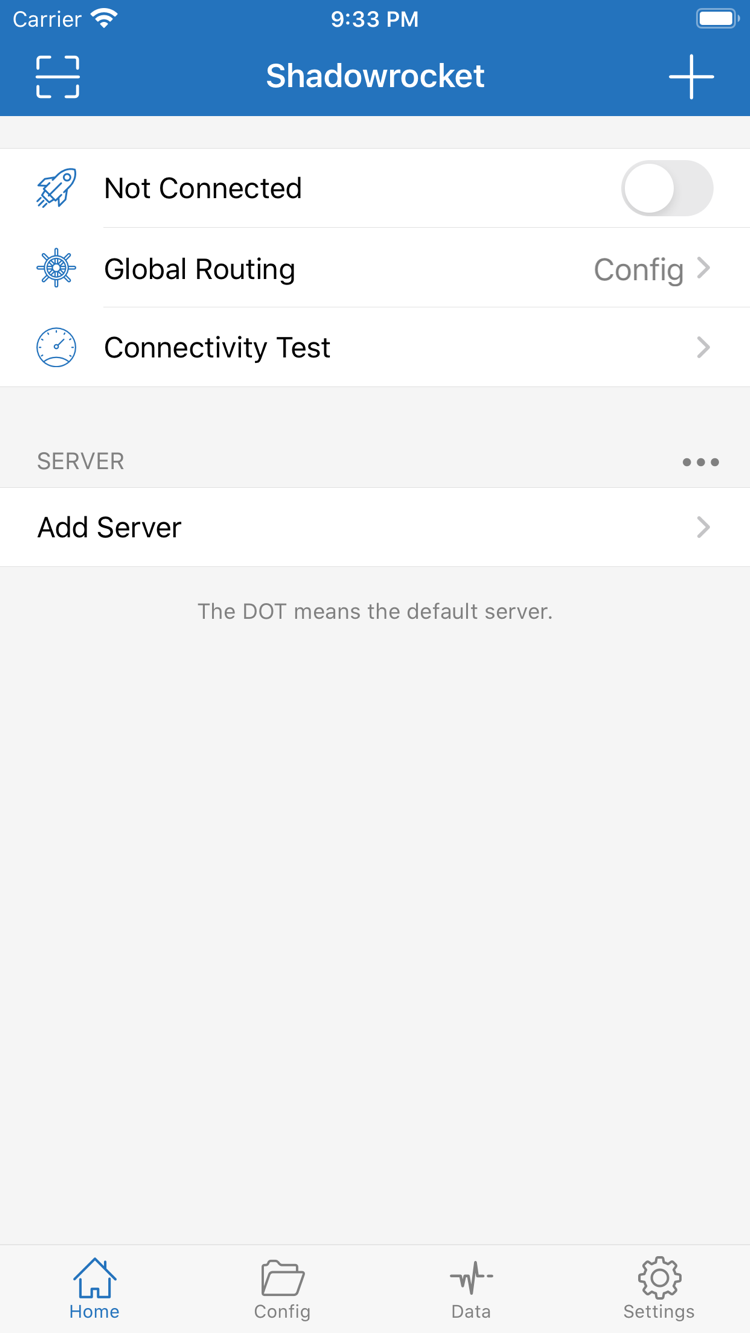
Official Shadowrocket Home screenshot showing the connection switch and Global Routing
Home: connection and global routing
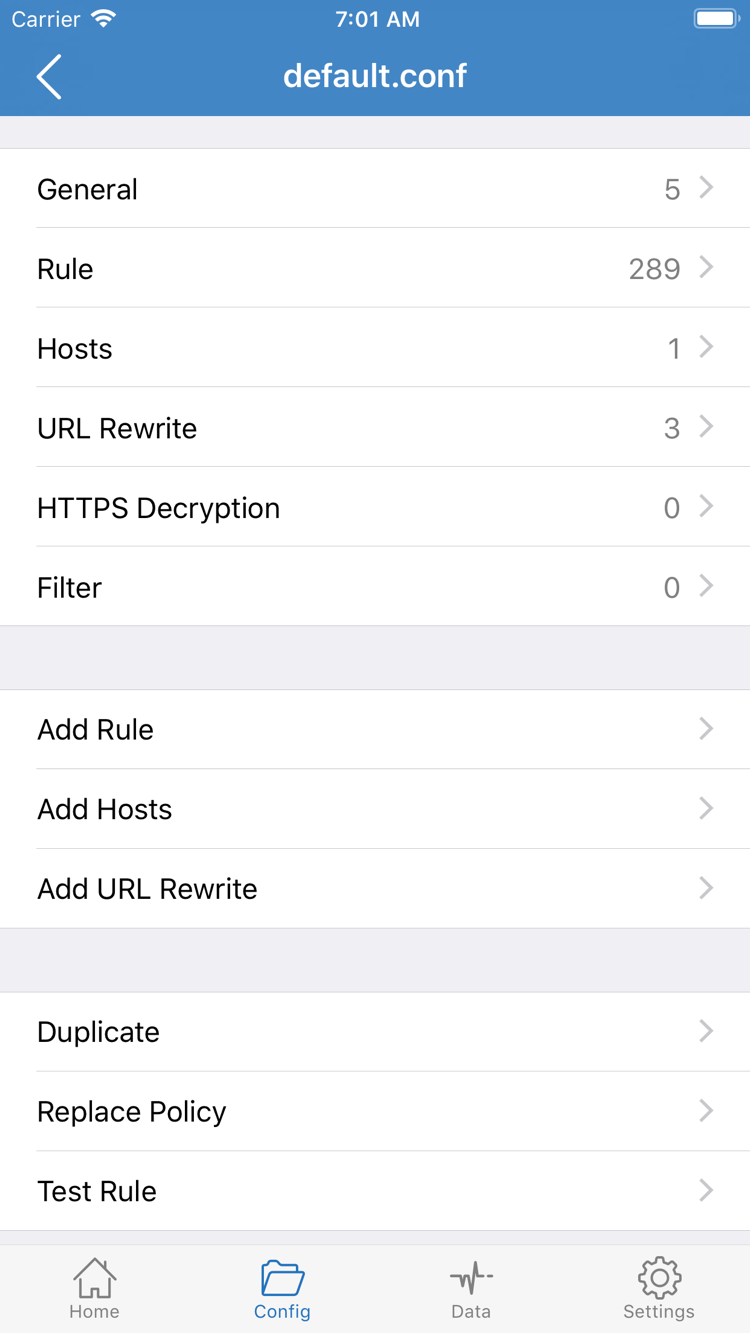
Official Shadowrocket Config screenshot showing configuration and rule editing
Config: configuration and rules
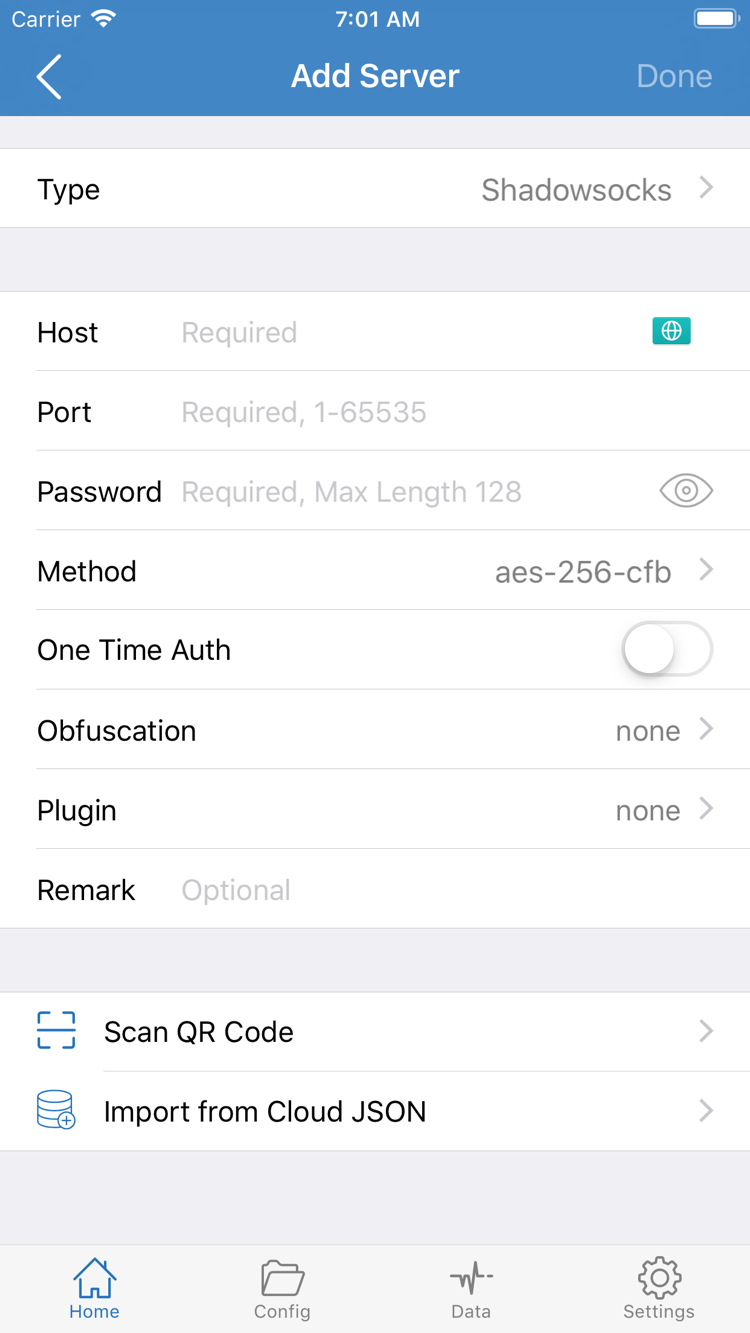
Official Shadowrocket Add Server screenshot showing server fields and the QR code option
Add Server: server settings

01 / Features and where to find them

Shadowrocket configuration and connections

First, understand the difference between servers, subscriptions and configuration files. A server stores the details needed for a connection; a subscription retrieves and updates server entries in bulk; a configuration file determines how connections are matched against rules. These are related, but not interchangeable. Successfully importing a subscription does not mean a connection has been established.

DOMAIN-SUFFIX,example.com,PROXY
FINAL,DIRECT

Global Routing:Config / Proxy / Direct

These three modes answer one question: how should the current connection be handled? Config follows the rules in the active configuration file; Proxy routes the connection through a proxy; Direct connects to the destination directly. The selected server in the server list is a separate choice from the handling mode. For rule-based routing, check both the default server and Config with the active configuration file—not just the switch at the top.

You can temporarily change the mode to narrow down a problem, but note the original setting and restore it after testing. If a request works in Proxy but fails in Config, continue checking which rule matches and where its policy routes traffic; that does not mean you should immediately delete the entire configuration. Direct is not a connection repair button: it changes the connection path, not the server details.

Steps from import to verification

For your first setup, prepare your own subscription or server details. After importing, check the entries on Home and tap the circle to the left of a server to set it as the default. Choose the appropriate Global Routing mode, turn on the connection switch, allow Shadowrocket to add a VPN configuration when prompted, then run Connectivity Test. System permission allows the client to create the required network configuration; it does not verify that the server works.

After testing, make an actual request and compare the result with traffic changes in Data. If only one destination fails, start by checking its rules and DNS resolution. If all requests fail, check the network and server details first. For the full workflow and common failure points, see the Getting Started guide. For bulk updates, duplicate cleanup and backups, see the subscription manual.

02 / Devices and App Store

Getting Shadowrocket on iPhone and iPad

Shadowrocket is available only on Apple platforms, exclusively through the App Store. Before purchasing, check the product page’s compatibility section and confirm your device and purchase account. System requirements and whether the purchase is universal are as listed on the App Store page.

First launch and connection permission

After downloading, make sure you open Shadowrocket, then add your existing details. When you first connect, the system may ask you to approve a VPN configuration and authenticate on your device. If you have not prepared server details yet, you can explore the interface, but system permission is not the same as activating a service. Whether the connection works still depends on the selected server, authentication details and current network.

When your device switches networks, check the current connection status before testing an actual request. If On Demand is enabled, also review its automatic trigger conditions. Avoid changing several settings at once while troubleshooting; otherwise, it is hard to tell which change affected the result.

Using the same purchase account and moving to another device

To use Shadowrocket on another device, first confirm the purchase account in the App Store, then find Shadowrocket in your purchased items. Restoring the app’s purchase eligibility and restoring its in-app configuration are separate steps. You may be able to download the app again, but that does not mean every subscription, remark and local change from the original device has been transferred.

If you use iCloud sync, check the relevant settings and sync results on both devices, then verify the default server and active configuration. Before moving devices, keep the original subscription URL and any necessary configuration copies. These details may include authentication information, so store them securely and do not include them in public screenshots or problem reports.

Shadowrocket is also available on Mac / Apple TV through the same App Store. Compatibility, system requirements and universal purchase availability are as listed on the App Store page.

View the steps →
Available on the App StoreDownload Shadowrocket

03 / App authenticity and purchase details

Verify the official App Store listing

Shadowrocket Guide is the official Shadowrocket website and manual. Verify the app using details on its product page: check the developer, official icon and app ID together. Do not rely on the app name or its position in search results alone.

Official Shadowrocket app icon: a rocket outlined in blue and purple on a white background
Developer
Shadow Launch Technology Limited
App ID
932747118
Purchase type
Paid app · One-time purchase

Developer, icon and app ID

Open the App Store product page and confirm the name is Shadowrocket. Check that the developer is Shadow Launch Technology Limited, compare the app icon with the official icon shown here, then verify that the product page URL contains id932747118. Search results may include similarly named apps, so do not rely only on a familiar nickname in the title. All three details should match.

Shadowrocket is a closed-source commercial app. Read feature information alongside the official in-app interface and App Store listing. Prices, compatibility and purchase terms are as shown in the store at the time. This manual does not maintain a fixed version list. If a button has moved, use interface terms such as Home, Config and Settings to find the relevant feature.

What does the one-time purchase include?

A one-time app purchase ≠ a service plan. The US storefront price is about $2.99 as a one-time payment; other storefronts display prices in local currency. The final price is the amount shown on the App Store page and purchase confirmation. You are paying for the client app, not a subscription URL, server account or term of network service.

This site does not provide, sell or recommend servers or subscriptions. It explains how to import and manage information you already have. After purchasing the app, you still need your own subscription or server details, then select a server, set Global Routing and test the connection. A subscription’s validity period, data allowance and availability are separate from app purchase eligibility; one does not determine the other.

Storefront availability and account region

Currency, visibility and purchase terms can vary across App Store storefronts. If you cannot find the app in search, use the product link provided on this page to check what your current storefront shows, then verify your account region and device compatibility. Do not assume the app has changed just because it does not appear in search, and do not mistake a similarly named result for the same product.

Before purchasing, check the devices and system requirements in the compatibility section. Universal purchase availability is also as listed on the App Store page. Network settings on your device do not change purchase records on your store account. If the purchase status shown does not match what you expect, first confirm that the Apple ID you use for the App Store is the original purchase account, then continue with restoration.

Restoring purchases and updating the app

After changing devices or reinstalling, use the Apple ID from your original purchase to find Shadowrocket in your App Store purchased items, then download it again according to the status shown. If you cannot find the record, check the account and purchase history. Family Sharing eligibility depends on the App Store page and your account; do not assume it applies automatically to every purchase.

Update Shadowrocket through the App Store. Depending on your device settings, updates can be automatic or checked manually. Updating the app and updating Subscribe content are separate actions: the former updates the client; the latter refreshes your server entries. Keep a copy before making significant configuration changes. After restoring or updating, check the active configuration, default server and connection test results.
Selected FAQs

Why am I still not connected after importing a subscription?

Importing saves and updates entries; it does not establish a connection. On Home, select a default server, check Global Routing, turn on the connection switch and approve the system prompt. Then verify with Connectivity Test and an actual request. Follow the Getting Started guide step by step; an entry appearing in the list does not prove that the connection works.

Why does a target still fail when the latency test returns a result?

A latency test uses a specific method and does not cover every destination’s rules and DNS resolution. Note the failed destination, then check the current mode, configuration rules and routing policy. Change one factor at a time; see the connection troubleshooting steps for the recommended order.

How are subscription updates different from configuration file updates?

A subscription usually refreshes server entries, while a configuration file contains rules and related settings. A changed server list does not mean the active routing rules have changed too. Check what was updated and which item is selected. Before bulk cleanup, keep the original URL. See the subscription and server management manual for instructions.

Do I need to buy Shadowrocket again after changing devices?

Use the Apple ID from your original purchase to check your App Store purchased items and current download status. Universal purchase availability and compatibility are as listed on the store page. After restoring the app, check your configuration and server details too. See how to restore a previous purchase.

04 / Technical notes

Connection checks and subscription management

These notes cover specific tasks. For your first setup, check the server selection and connection switch. If you already have multiple subscriptions, organize remarks, remove duplicates and keep a backup. Preserve the original information each time you make a change so you can compare the results.

View all articles →